

Is the Dell XPS 14 (2026) worth your money in 2026, or are you paying extra for a pretty badge? The Dell XPS 14 is back after Dell’s short “Premium” detour, and the bigger story is how hard it swerves toward practical fixes.
You’re getting a redesign that addresses last generation’s daily annoyances, plus a real choice between an OLED touch panel and a brighter, lower-power 2K LCD. Add Intel Core Ultra Series 3 (Panther Lake), integrated Arc graphics, Wi-Fi 7, and an 8MP webcam, and it’s a serious Windows ultraportable again.
This review breaks down what matters in real use: design changes, OLED vs LCD, performance, battery life, ports, webcam, and whether the price makes sense.
RELATED: LG C6 OLED vs Panasonic Z85A OLED: Which is Better?
Quick Review
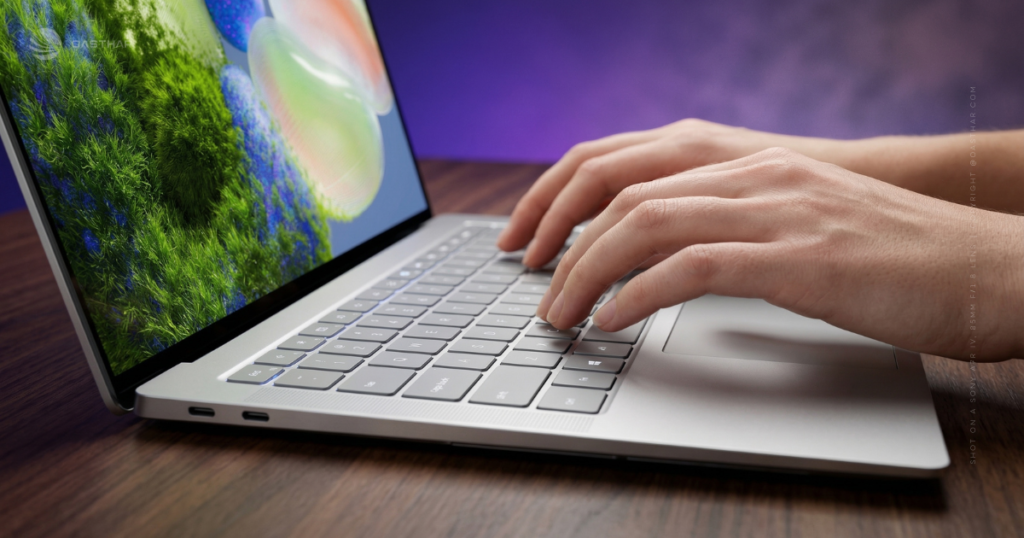
If you want a premium 14-inch Windows laptop that feels “normal” again, the XPS 14 (2026) finally makes a strong case. You get a compact CNC aluminum body around the 3-pound mark, a physical function key row (thank you), and a haptic touchpad you can actually position your fingers on without guessing.
Your biggest decision is the display. The 2K LCD is brighter and can last much longer on battery. The 2.8K OLED touch looks great, but it runs dimmer than some rivals and drains faster. Performance from Panther Lake is plenty for heavy multitasking, and the integrated Arc graphics can handle light gaming with the right settings.
Pros
- Premium build in a very travel-friendly size
- Physical function keys are back
- Strong everyday speed, solid iGPU capability
Cons
- USB-C only ports (dongles happen)
- Price climbs fast with upgrades
- Battery life varies a lot by screen choice
Specifications
Here’s the spec snapshot you can trust before you start comparing configs.
| Spec | Dell XPS 14 (2026) details (confirmed) |
|---|---|
| Starting price | $1,599 (base configuration) |
| Higher-end config price | Around $2,199 (Core Ultra X7 + OLED example) |
| CPU options | Intel Core Ultra 5, Ultra 7, Ultra X7, up to Ultra X9 (Core Ultra Series 3) |
| Graphics | Intel Graphics (lower configs), integrated Intel Arc graphics (higher configs) |
| Memory | 16GB, 32GB, up to 64GB LPDDR5X (not upgradable) |
| Storage | 512GB up to 4TB SSD |
| Display options | 14-inch 1920 x 1200 LCD non-touch (120Hz, up to 500 nits), 14-inch 2880 x 1800 OLED touch |
| Ports | 3x Thunderbolt 4 / USB-C, 3.5mm headphone jack |
| Wireless | Wi-Fi 7, Bluetooth 6 |
| Webcam | 8MP, 4K-capable |
| Battery | 70Wh class (Dell references 70Whr) |
| Weight | About 3.0 lb class |
Design & Build Quality
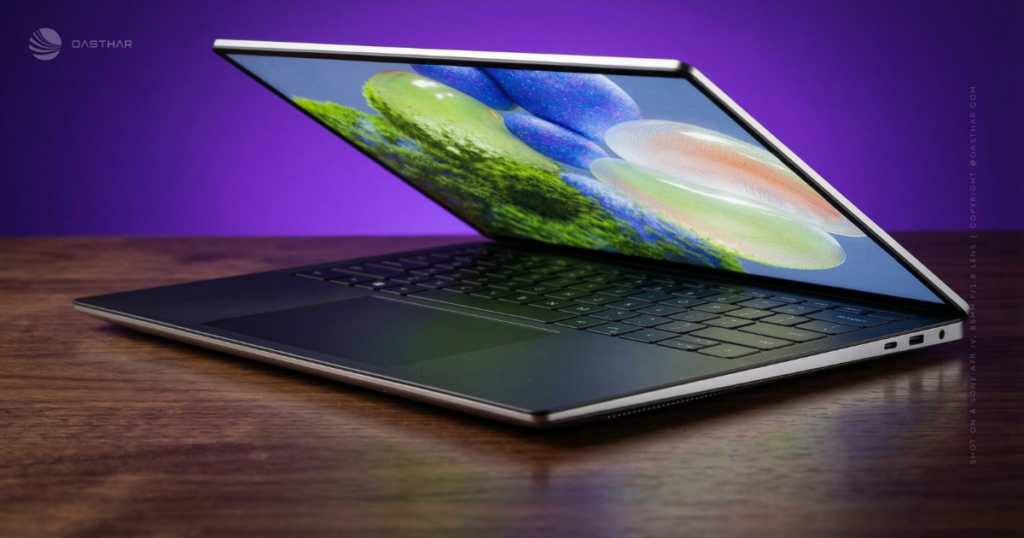
The 2026 XPS 14 feels like Dell stopped trying to outsmart you. The chassis is CNC-machined aluminum, compact for a 14-inch system, and it lands around 14.6mm thin. At roughly 3 pounds, it’s the kind of laptop you actually keep carrying, instead of “working from home” forever.
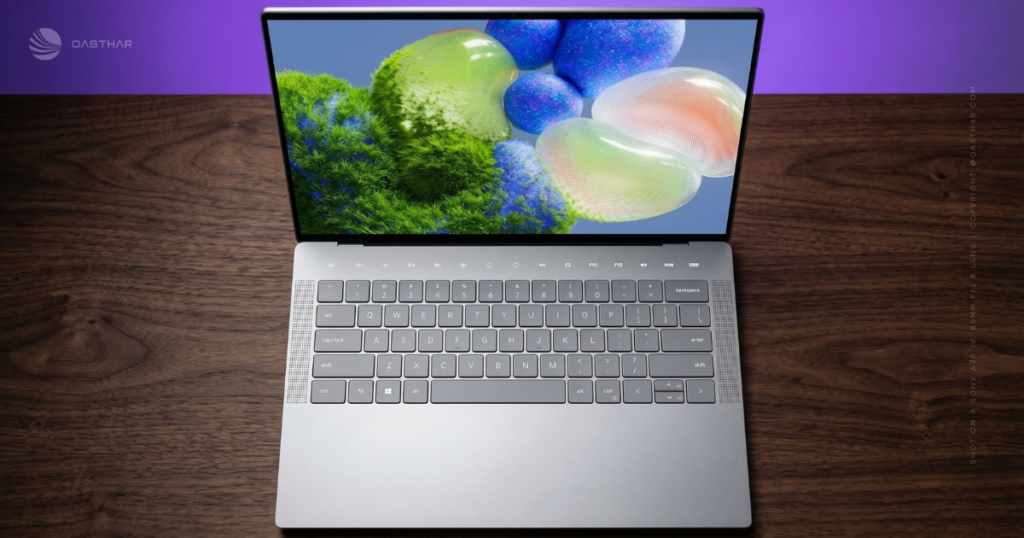
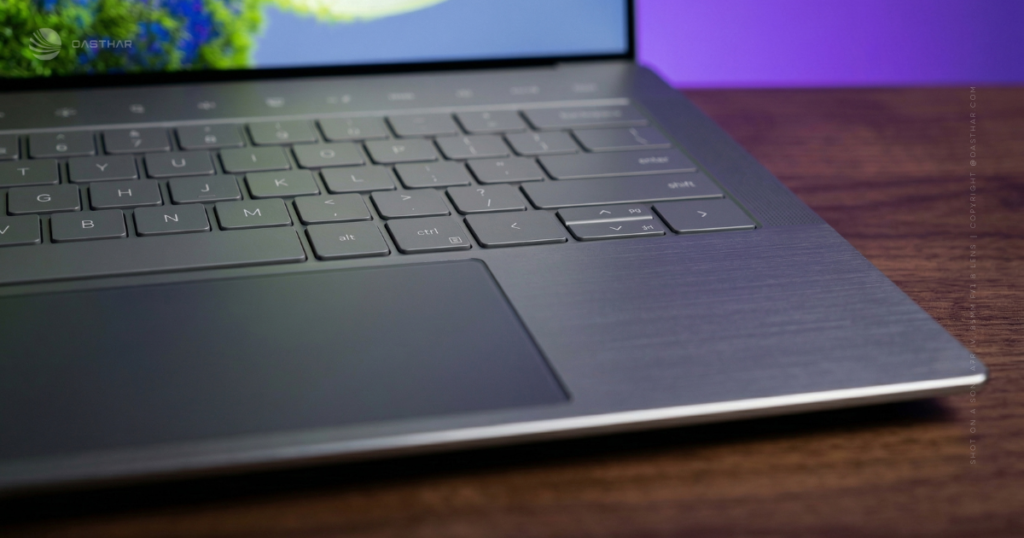
The biggest quality-of-life wins are simple. You get a real function row again, instead of the old capacitive strip. The haptic touchpad stays glass and clicky, but Dell added subtle etched boundaries so you can feel where it starts and ends. Those sound like small changes, yet they fix the stuff that broke your rhythm every day.
If you want another perspective on how this redesign lands in day-to-day use, this internal write-up tracks the same practical improvements: Dell XPS 14 (2026) review.
Keyboard and touchpad
Typing is where you notice the reset first. The “zero lattice” keyboard style feels crisp, with a clean press that suits long emails and school work. It doesn’t try to be flashy, and that’s the point.
The touchpad matters even more. With the etched outline, you stop hunting for the edge, especially when you’re scrolling in bed or working on a plane tray. Gestures feel predictable, and the haptic click gives consistent feedback.
Ports and practicality
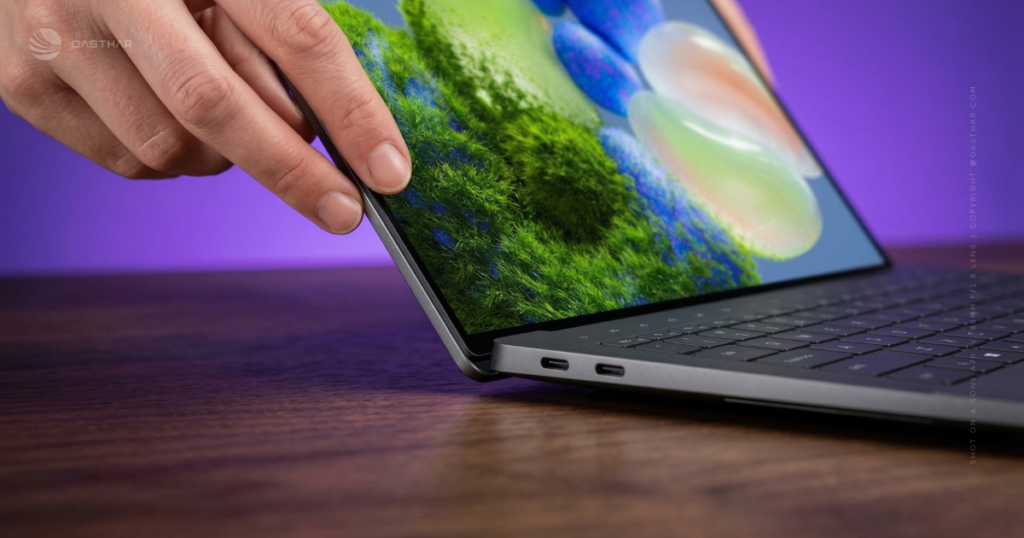
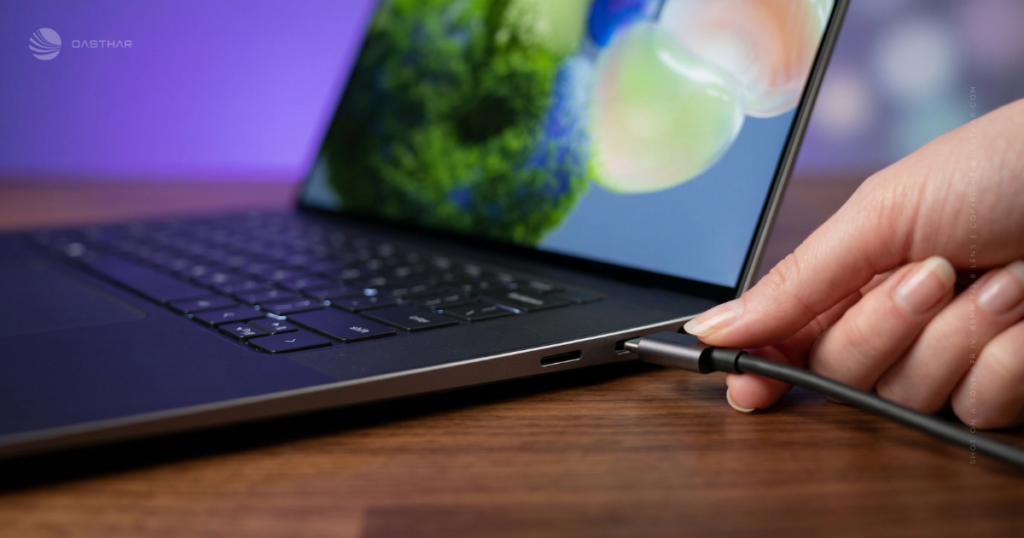
You’re working with three Thunderbolt 4 USB-C ports and a 3.5mm headphone jack. Thunderbolt 4 covers charging, fast external SSDs, and display output, so you can build a serious desk setup with one cable.
Still, the missing ports are the obvious pain: no USB-A, no HDMI, no SD card slot. If you use older flash drives, cameras, or conference room TVs, budget for a hub. Otherwise, you’ll be that person asking around for an adapter.
If your workday includes SD cards or HDMI, plan the dongle life up front, not after checkout.
Display Quality
This is the fork in the road. The 14-inch 1920 x 1200 LCD option is non-touch, runs at 120Hz, and reaches up to 500 nits, which helps in bright rooms. Notes around this panel also point to very low refresh behavior (down to 1Hz in some cases), which can help save power during static work.
The 14-inch 2880 x 1800 OLED touch option looks richer, with the classic OLED strengths: deep blacks and strong contrast. Dell’s tandem OLED approach also aims at efficiency and long-term durability, but in measured testing the OLED brightness landed in the mid-300 nits for SDR (with HDR also lower than some rivals). That can matter if you work near windows or outside.
For broader lab-style impressions and brightness testing context, see the OLED-focused coverage from Tom’s Guide’s XPS 14 (2026) review.
Color, brightness and real-world viewing
For movies and dark UI themes, OLED looks great. Blacks stay black, and colors pop in a way LCD usually can’t match. Photo browsing and streaming also benefit from that contrast.
Brightness is the trade. If you sit next to a sunny window, the LCD’s higher nit rating can feel more usable. With OLED, glare and lower sustained brightness can push you to crank the slider, which costs battery.
Refresh rate and power
Variable refresh sounds nerdy, but the benefit is simple: the screen can slow down when nothing’s moving. That saves power while reading, writing, or staring at a spreadsheet.
On the XPS 14 (2026), the low-power LCD route has an easier time stretching battery, helped by that ability to drop very low in refresh. OLED tends to cost more power, even when it’s designed for efficiency, because lighting each pixel still adds up.
Performance
With Intel Core Ultra Series 3 (Panther Lake), the XPS 14 aims for fast everyday response and better integrated graphics. In real multitasking, that’s what you feel most, apps open quickly, dozens of tabs don’t bog the system down, and background tasks stay in the background.
In published benchmark results for a Core Ultra X7 358H configuration, Geekbench 6 hit 2,867 single-core and 16,927 multi-core, and a HandBrake transcode finished in 4:32. In plain terms, you’ve got enough CPU for office work, school, light creative projects, and some video work without immediate regret.
Dell also says it redesigned the thermal architecture, and the behavior lines up with a “keep it comfortable” tune. Short bursts feel quick, while long, heavy runs can slow down to keep heat and noise in check. For more benchmark depth across tests, NotebookCheck’s XPS 14 (2026) review is a useful reference point.
Everyday work feels fast
A realistic day looks like this: Chrome tabs everywhere, Slack buzzing, and a 4K YouTube video running while you bounce between docs. The XPS 14 handles that kind of chaos without feeling behind.
That’s the practical win of this generation. You aren’t buying it to stare at charts. You’re buying it to stay smooth when your workload gets messy.
Gaming and graphics on an iGPU
You’re still on integrated graphics, so expectations matter. That said, Panther Lake’s integrated Arc can make modern games playable if you act like a PC gamer and tune settings.
Example numbers at mixed settings show the range: Borderlands 3 around 36 fps, Shadow of the Tomb Raider around 39 fps, and Cyberpunk 2077 around 14.9 fps. Cyberpunk needs more help, but dropping to 1080p and using Intel XeSS can turn “nope” into “fine” for casual play. If you want high settings at native res, you still want a discrete GPU laptop.
Battery Life & Charging
Battery life is where the screen choice stops being a detail. Dell has talked about big numbers (as high as 27 hours with the 2K display), helped by a 70Wh class battery design.
Real testing gives you a clearer view. In a Wi-Fi web browsing test at 150 nits, the OLED XPS 14 (2026) ran about 12 hours and 23 minutes. That’s a major jump over older models, yet it still trails long-lasting OLED competitors and the longest-running laptops.
Lower-power screen configs can go much longer. One reported result for a 1200p LED-style configuration hit 21 hours and 20 minutes, which is the version you pick when outlets feel rare.
Charging is USB-C via Thunderbolt 4. Some coverage also mentions a 100W adapter included with certain packages, so it’s smart to confirm what ships with your exact retail config.
OLED vs LCD battery
If you travel, take long classes, or work away from your desk, the LCD model makes the most sense. It’s brighter and it tends to last far longer.
If your laptop is also your couch TV, the OLED is the indulgence that feels worth it. Just expect to charge more often. Students usually benefit more from endurance than perfect blacks.
Thermals and fan noise
Dell says it reworked cooling, and the design goal feels clear: keep noise and heat reasonable for daily use. In short bursts, the system feels snappy. Over long runs, it can pull back to stay controlled.
That’s not a flaw for most people. It’s a reminder that thin laptops pick comfort over endless full-speed rendering.
Software & Ecosystem
You’re buying into a modern Windows 11 laptop experience, and Dell positions this generation as Copilot+ ready with Intel’s platform support for AI features. Even if you don’t care about the AI angle, the day-one setup still matters.
First, run Windows Update until it stops offering new items. Next, set up backup (OneDrive or your own drive routine), because thin laptops are not fun to repair on a deadline. After that, check display scaling and color profiles so text looks right and photos don’t look oddly warm.
If you plan to dual boot Linux, be cautious. Quick Fedora testing notes on Panther Lake-era XPS hardware have shown driver gaps (camera, audio, internal Wi-Fi, and touchpad issues in that kind of “boot from a thumb drive” scenario). That can change with updates, but you shouldn’t assume perfect support on day one.
Connectivity
Wi-Fi 7 and Bluetooth 6 are the kind of specs you only notice when they’re missing. On a good Wi-Fi 7 router, you can see better performance in crowded networks and smoother high-bandwidth tasks like large downloads and high-quality streaming.
Bluetooth 6 helps in the background, too. Wireless earbuds, mice, and keyboards tend to behave better when the radio stack is strong. Still, your real gains depend on your router and the devices you pair, so don’t expect miracles if the rest of your gear is old.
Cameras, Microphones & Speakers
Dell includes an 8MP webcam that can capture 4K, which is a meaningful bump for video quality. You also get the convenience of Windows Hello face login, so signing in feels instant instead of annoying.
For meetings, the practical upside is clarity. A higher-resolution sensor can hold detail better, even after conferencing apps compress the video. On the audio side, XPS laptops in this class usually aim for loud and clean output, and early impressions of the 2026 models point to clear, room-filling sound for something this thin.
If you want another test-focused view on the broader “is it for you?” question, CNN Underscored’s Dell XPS 14 review is worth reading alongside your own priorities.
Webcam quality
You probably won’t record 4K calls. The real benefit is flexibility. Higher resolution can mean sharper 1080p video, and it gives more room for cropping and framing without turning you into a blurry mess.
Lighting still runs the show. Face a window when you can, and keep a small lamp nearby for night calls. Also, check privacy settings after setup, because Windows permissions can get messy fast.
Audio for YouTube and meetings
“Good” laptop speakers usually means clear voices, enough volume, and minimal harshness at higher levels. That matters more than deep bass for meetings and podcasts.
Bass is still limited on most thin laptops, including premium ones. If you care about music, a small pair of speakers or headphones will still beat any built-in setup.
Extra Features
The XPS 14 (2026) nails a bunch of small stuff that adds up. Windows Hello face unlock saves time every day. The touch option on the OLED model is genuinely useful for scrolling and quick taps, even if you still use the trackpad most of the time.
High refresh rate displays also help the laptop feel smooth while scrolling and window switching. Finally, the compact footprint is the quiet flex here, you get a 14-inch screen in a body that doesn’t feel bulky.
Price & Value
At $1,599, the base XPS 14 looks like a premium Windows laptop priced like a premium Windows laptop. Once you start upgrading, the total jumps quickly. An example higher-end configuration with Core Ultra X7 and OLED lands around $2,199, and you can push higher with more RAM and storage.
The tricky part is that upgrades aren’t equal. The display choice changes how the laptop feels every day, battery life, outdoor comfort, and how much you enjoy watching anything. RAM matters, too, because LPDDR5X in machines like this is typically not upgradable later, so buying “just enough” can age poorly. Storage is the last lever, and it depends on whether you keep large local files.
If you need more hands-on impressions of the refreshed XPS direction, CNET’s XPS 14 hands-on gives additional context without relying on marketing claims.
Who is it for?
You’ll like the Dell XPS 14 (2026) when your priorities match its strengths.
Buy it if
- You want a premium, compact build, around 3 pounds and easy to carry
- You hated the old design choices, and want physical function keys and a usable touchpad boundary
- You need fast everyday performance, with Core Ultra Series 3 and solid multitasking
- You care about modern wireless, with Wi-Fi 7 and Bluetooth 6
- You take a lot of calls, and want an 8MP, 4K-capable webcam
Do not buy it if
- You need built-in ports, like HDMI, USB-A, or an SD card slot
- You want the brightest HDR-style screen, since the OLED isn’t the brightest in testing
- You want OLED visuals and maximum battery, because you won’t get both
- You need a discrete GPU, for heavy gaming or sustained 3D and render workloads
FAQs
Is the Dell XPS 14 (2026) actually better again?
Yes, it feels like a real correction. You get physical function keys back, a visible touchpad edge, a lighter 3-pound build, and stronger Intel Arc graphics.
Which display should you pick, OLED touch or 2K non-touch?
Pick tandem OLED if you want punchy color and contrast. Choose the 1920 x 1200 non-touch for longer battery potential and higher brightness (about 500 nits).
How good is battery life on the XPS 14 (2026)?
Dell claims up to 27 hours with the 2K display, helped by a 70Whr battery. OLED models should run less, especially at higher brightness.
Does the 1Hz refresh rate really help battery life?
Yes, it can. When you’re reading or working on static content, dropping to 1Hz reduces power draw, so you’re not wasting battery on refreshes.
Is performance strong enough for editing, gaming, and multitasking?
For most people, yes. Core Ultra Series 3 chips and integrated Arc graphics feel smooth, and Dell claims up to 50% better graphics than before.
Will it throttle under heavy loads like exports or renders?
It can slow down during long, sustained workloads. Still, for typical creative bursts and everyday multitasking, performance stays quick, and cooling has been redesigned.
Final Verdict
You should buy the Dell XPS 14 (2026) if you want a premium Windows ultraportable that fixes the daily usability mistakes of the last design. Pick the LCD if battery life and brightness matter most, and pick the OLED if you prioritize contrast and touch. Performance is strong for real work, and the integrated Arc graphics can handle light gaming with smart settings. You’ll still need to accept USB-C only ports, and you shouldn’t pretend $2,199 is “normal” pricing.
The key takeaway is simple: the 2026 XPS 14 feels like Dell listened, but you still have to choose the right screen and live the dongle life. If that sounds fine, you’ll probably love using it.
