

Are you thinking about the Alienware 16 Area-51 (2026) because you want desktop-level gaming power in a laptop shell? If so, you’re asking the right question, because this machine makes a very clear trade.
You’re getting a chunky, desk-first gaming laptop that prioritizes cooling, ports, and raw performance over travel comfort. In this review, you’ll see what that means day to day: the design choices, OLED vs IPS options, real game performance, fan noise, battery life, ports, and whether the price makes sense.
If you want a commuter laptop for coffee shops, this isn’t it. If you want a “close the lid after a session” desktop stand-in, it starts to look very logical.
RELATED: MSI Stealth 16 AI+ Review (2026): Best OLED 240Hz, RTX 5090?
Quick Review
The Alienware 16 Area-51 (2026) feels like Alienware leaning back into its roots. You get a bold chassis, a huge cooling-focused rear shelf, and performance that’s happy to sit on a desk and stay there. In testing with Intel’s Core Ultra 9 275HX class CPU and an RTX 5080 Laptop GPU, 1600p gaming looks smooth, and the system holds performance over long sessions. The fans do ramp up, but the tone is lower than many thin gaming laptops.
Portability is the obvious compromise. At 3.4kg, plus a large power brick, it’s not a bag-friendly daily carry. Battery life also lands around 4 hours for typical desktop use, and closer to 6 hours looping video in lighter conditions.
Pros
- Very strong 1600p performance with RTX 5080-class configs
- Excellent keyboard option, including CherryMX low-profile mechanical
- Rear port layout keeps desk cables tidy
Cons
- Heavy (3.4kg), not travel-friendly
- Short battery life for the price tier
- Display varies, confirm IPS vs OLED before you buy
Specifications
Here’s the practical spec view, based on common 2026 configurations and reviewed hardware.
| Feature | What you get |
|---|---|
| Display size | 16-inch |
| Resolution and refresh | 2560×1600 (QHD+), 240Hz |
| Panel options | IPS LCD or non-reflective OLED (depends on configuration) |
| CPU (reviewed tier) | Intel Core Ultra 9 275HX |
| GPU options | NVIDIA GeForce RTX 5070 Ti, RTX 5080, up to RTX 5090 (by configuration) |
| Memory | 32GB DDR5 common, up to 64GB (by configuration) |
| Storage | 2TB NVMe SSD common (expandability varies by configuration) |
| Wireless | Wi-Fi 7, Bluetooth 5.4 |
| Ports (high-level) | USB-A (x3), Thunderbolt USB-C (often x2), HDMI 2.1, SD card reader, 3.5mm combo jack |
| Battery | 96Whr |
| OS | Windows 11 |
| Weight | 3.4kg (7.49 lbs) |
| Size | 365×290×28.5mm |
The takeaway: it’s built like a performance rig first, and a carry-around laptop second.
Design & Build Quality
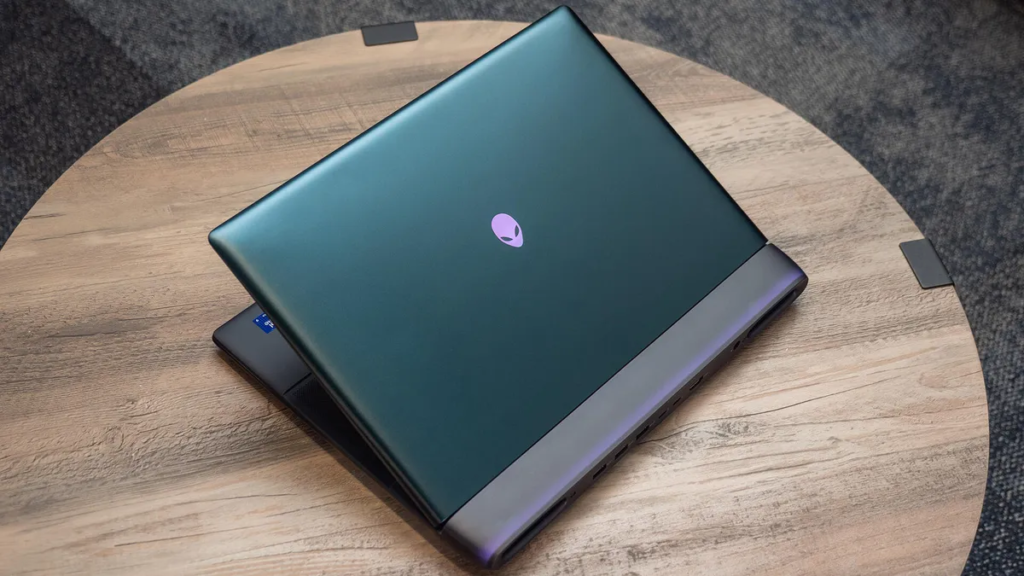
You’ll notice the vibe immediately. This isn’t a shy slab of metal trying to pass as an office laptop. The 16 Area-51 brings back that more “old school” Alienware feel, with sci-fi styling and a finish that shifts color in the light (often described as a Liquid Teal look on the lid). It has character, and it doesn’t pretend otherwise.
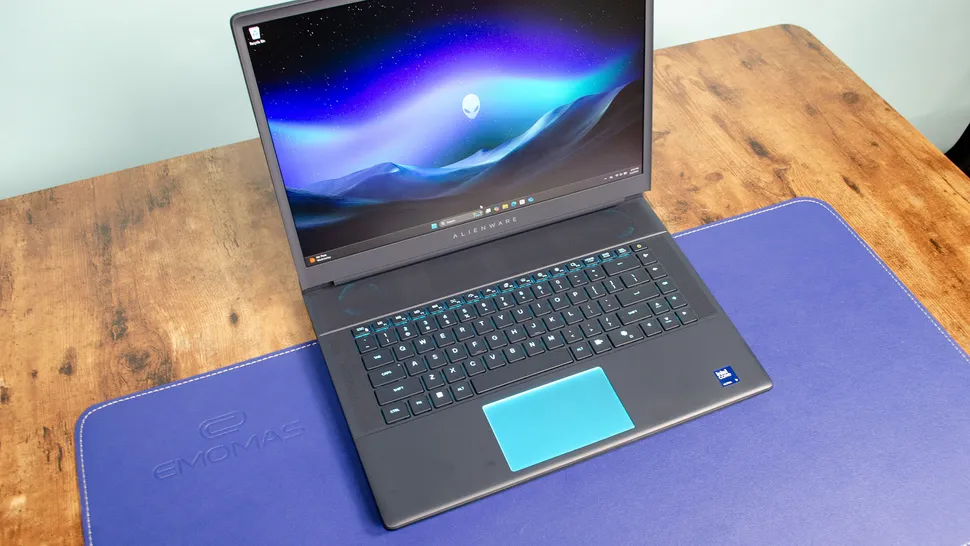
The key functional design choice is the chunky rear shelf. Most ports live back there, which makes your desk setup cleaner. Cables run away from you, not into your mouse hand. The downside is simple: if your laptop sits close to a wall, reaching those ports can get annoying.
Build-wise, it comes off sturdy, but you shouldn’t expect an all-metal minimalist vibe everywhere. Some impressions note more plastic under the lid than similarly priced rivals, even if the overall chassis still feels solid.
If you want more context on the “retooled mothership” approach to the design, Engadget’s coverage is useful background: Engadget’s Alienware 16 Area-51 review.
Keyboard and touchpad
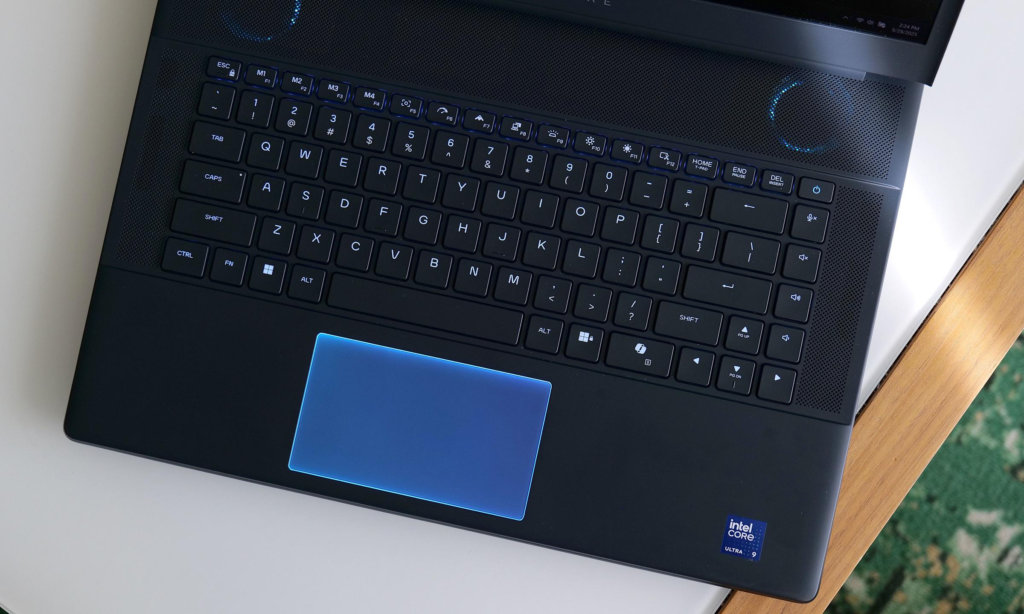
If you care about feel, the optional CherryMX low-profile mechanical keyboard is one of the smartest upgrades here (some reviews cite it as a small add-on cost). It’s tactile and satisfying in a way most laptop keyboards just aren’t. You also get a bit more confidence when typing fast, because the feedback is clearer.
There are quirks. Some layouts include a very large Copilot key, and macro-friendly keys sit close to WASD. In real use, that’s either handy or mildly irritating, depending on how often your fingers drift.
The touchpad does its job. On some models, it lights with diffused RGB, it tracks gestures reliably, and it uses a physical click. Still, if you’re buying an Area-51, you’re probably using a mouse for games anyway.
Display Quality
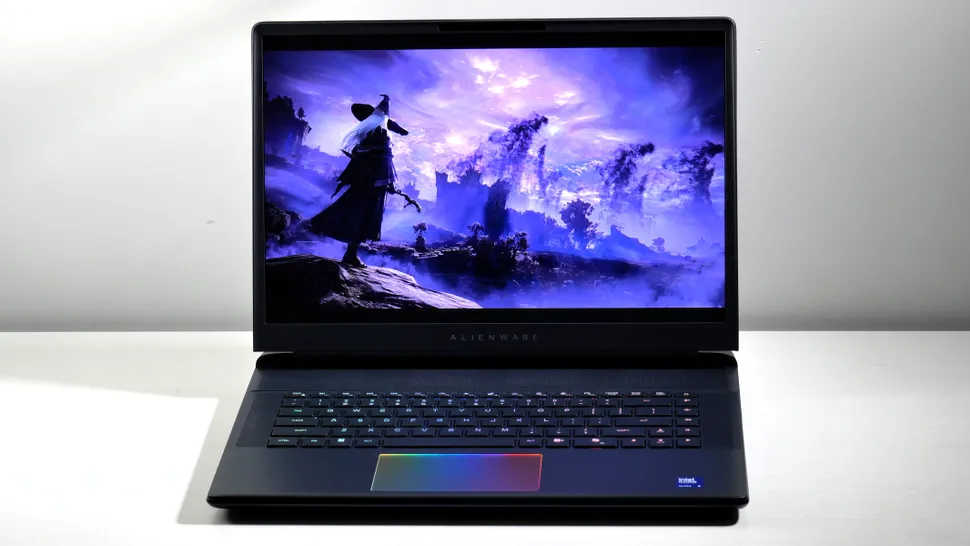
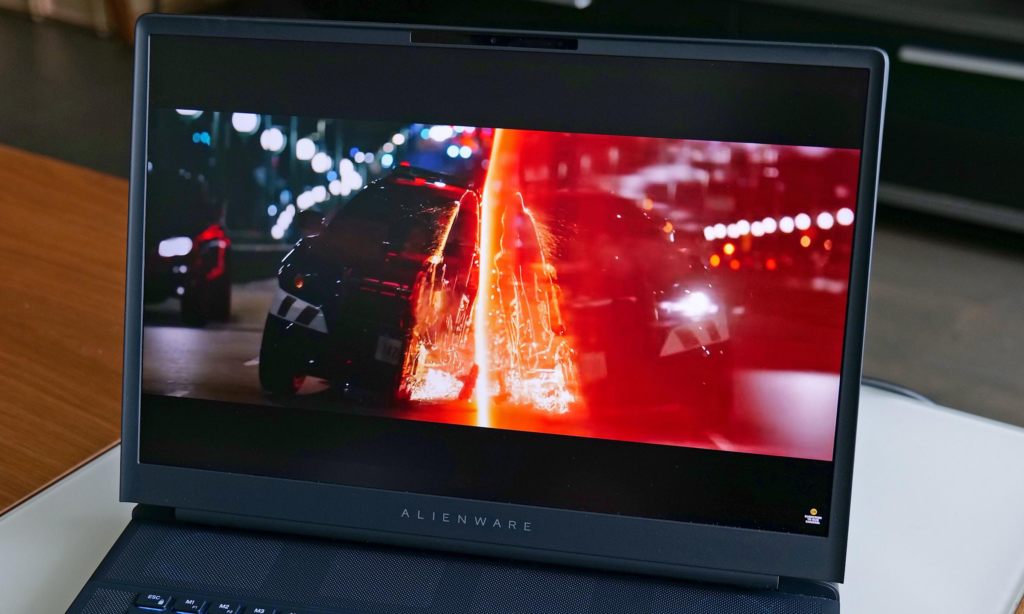
At 2560×1600 and 240Hz, the Area-51 hits a sweet spot for a 16-inch gaming laptop. Text looks sharp at normal distance, and motion stays smooth in shooters. Just as important, 1600p is far easier to drive than 4K, so you’re not wasting GPU power on pixels you might not notice mid-match.
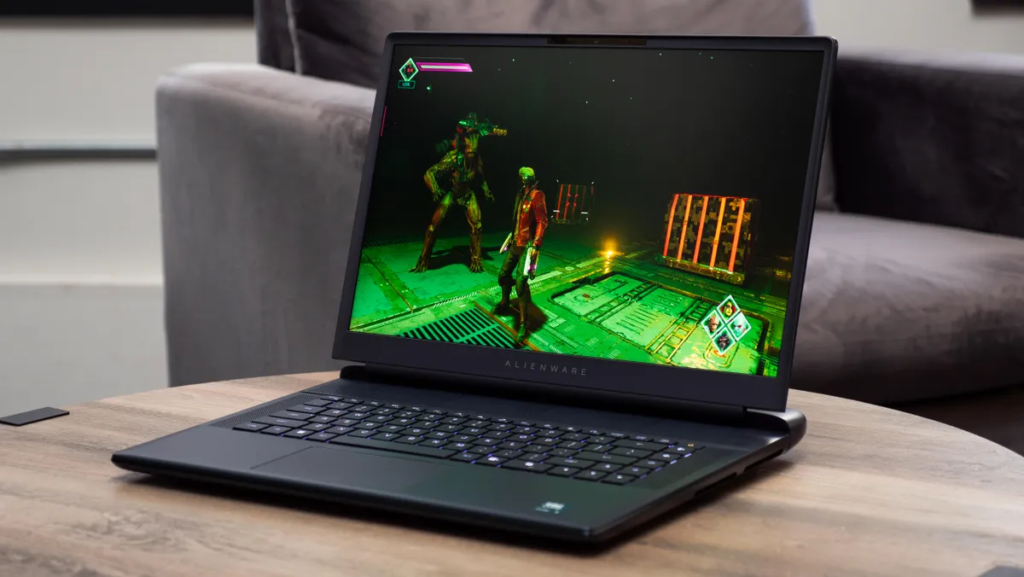
Glare control matters more than people admit, and many 2026 mentions focus on non-reflective, anti-glare OLED options. That’s a big deal if your desk gets daylight. CES 2026 previews also highlight OLED performance claims like high HDR peak brightness and very fast response, as reported in GadgetMatch’s CES 2026 Alienware preview.
Here’s the catch: some reviews and configurations still reference a 240Hz IPS panel. IPS can still look good, but contrast and “inky blacks” won’t match OLED, and HDR support can be missing depending on the panel.
Before you hit buy, confirm the exact panel type in your configuration. “Area-51” doesn’t guarantee IPS or OLED by itself.
Performance
With the Core Ultra 9 275HX class CPU and RTX 5080 Laptop GPU, you’re looking at the kind of performance that makes a desktop tower feel optional. At the native 2560×1600 resolution, many games run at high frame rates without drama, and the system’s cooling helps it keep those speeds over time.
Real benchmark snapshots from RTX 5080 testing show what that looks like:
- 3DMark Steel Nomad: 5281 (52.82 fps)
- Gears Tactics: 145 fps
- Shadow of the Tomb Raider: 161 fps (RT off), 110 fps (RT on)
Ray tracing is where reality checks you a bit. Cyberpunk 2077’s RT Overdrive mode, for example, can be too heavy at native resolution, but DLSS with frame generation changes the story fast:
- Cyberpunk 2077 RT Overdrive: 23.1 fps native, 176.6 fps with DLSS (balanced, 4x frame gen)
On the CPU side, results like Geekbench 6 (single-core around 2984, multi-core around 19998) point to strong productivity too, meaning streaming, editing, and heavy multitasking don’t feel like side quests.
For another angle on the 2026 model direction and why the OLED shift matters, Tom’s Guide has a helpful early look: Tom’s Guide hands-on preview.
Thermals and fan noise
This laptop doesn’t hide what it is. When you switch into high-performance modes and hit the GPU hard, the fans spin up quickly. The good news is that the sound tends to be noticeable but lower-pitch, not the sharp whine some thin systems produce.
The better news is consistency. Under prolonged play, performance stays steady in testing, which is the whole point of carrying more size and weight.
For light work, it behaves more politely. Browsing, writing, and video playback don’t push the fans the same way, so you won’t live in “jet engine” mode all day. Still, for serious gaming, plan on a headset.
Battery Life & Charging
Even with a 96Whr battery and graphics switching features, battery life is a weak spot. Real-world reports land around four hours of typical desktop use, and closer to six hours looping video at moderate brightness. That’s okay for moving around the house, but it’s not what you buy if you need long sessions away from an outlet.
The reason is simple. High-end CPUs and GPUs draw power, and a bright 240Hz panel doesn’t sip gently either. You can lower refresh rate, reduce brightness, and use quieter profiles, but you’re still working against the physics of a desktop replacement.
The charging experience also reinforces the “desk-first” idea. Expect a big power brick, and expect to use it often if you game.
Software & Ecosystem
You’re on Windows 11, and the Alienware experience mostly comes down to Alienware Command Center. In plain terms, it’s where you pick performance modes, tune fan behavior, and control AlienFX lighting.
In practice, you’ll use two or three settings, not twenty:
- Quiet or balanced when you’re browsing or watching video
- High performance when you’re gaming, because you want stable clocks
- A lighting profile you set once, then forget
Changing modes has real trade-offs. Quieter profiles reduce noise, but they can also cap performance. High performance gives you the frame rates you paid for, but it brings fan noise with it.
Connectivity
Connectivity is one of the Area-51’s strongest everyday wins. You get Wi-Fi 7 and Bluetooth 5.4, which is as current as it gets in early 2026 for mainstream laptops. If your router supports Wi-Fi 7, downloads and game updates can feel less painful.
Wired ports are also plentiful, and the rear placement makes docking feel natural. Common configurations include:
- Multiple USB-A ports
- Two Thunderbolt USB-C ports (often listed as Thunderbolt 5)
- HDMI 2.1
- SD card reader and 3.5mm audio
If you’re building a full desk setup with external storage and a high-refresh monitor, the port selection makes life easy. If you’re always unplugging in tight spaces, the back-mounted ports can be a hassle.
Cameras, Mics & Speakers
Depending on configuration, you’ll see camera options like FHD IR or a higher-end UHD HDR IR module, with Windows Hello support through the IR setup. That’s practical, because face sign-in is faster than typing a PIN.
Speakers are serviceable. The tuning tends to favor clear mids, so voices come through well in calls and videos. Bass is limited, as expected for a gaming laptop chassis. For actual gaming, a headset still makes the most sense, especially because fan noise can compete with speaker output under load.
Extra Features
A few extras matter more than spec sheets suggest:
- NVIDIA G-Sync: helps prevent tearing when frame rates swing.
- Advanced Optimus-style switching: makes it easier to swap between integrated and dedicated graphics behavior without constant manual fuss, depending on configuration.
- Per-key RGB and lighting zones: fun if you want it, ignorable if you don’t.
- Optional mechanical keyboard: one upgrade you’ll notice every minute, not just in benchmarks.
None of these fixes the weight or battery reality, but they do make the laptop nicer to live with at your desk.
Price & Value
High-end configs aren’t subtle about pricing. One tested configuration with the Ultra 9 275HX tier CPU, RTX 5080 Laptop GPU, 32GB RAM, and 2TB SSD has been cited around $3250 (and £3099 in the UK). That’s serious money, so the value question matters.
The best value logic here is simple. If you’re gaming at 2560×1600, RTX 5080-class performance is already plenty for high settings in many titles, and DLSS plus frame generation can rescue the heaviest ray tracing modes. Paying extra for the very top GPU tier can make sense for 4K external displays, heavy creator workloads, or “max everything” buyers. Otherwise, it can be overkill.
If you want a broader sense of what else competes in the category, you can sanity-check against your needs using Oasthar’s Best Gaming Laptops 2025 guide.
Who is it for?
Buy if
- You want a desk-first desktop replacement, not a commuter laptop.
- You game at 1600p, and you want high refresh rates that feel smooth.
- You care about ports and cable management, because the rear layout keeps things tidy.
- You want a standout design, not another plain black rectangle.
Do not buy if
- You travel often, because 3.4kg plus the power brick gets old fast.
- You need long battery life, since 4 hours of typical use is a common result.
- You hate fan noise, because performance modes make themselves heard.
- You’re picky about screens but won’t verify the panel, since IPS and OLED differ by configuration.
FAQs
Is the OLED display worth choosing over the IPS model?
If you care about contrast, color, and motion clarity, yes. The OLED option pairs 240Hz with a very fast 0.2ms response and an anti-glare finish.
What kind of RTX 50-series performance should you expect?
With RTX 5080 or RTX 5090 laptop graphics (up to 175W), you can game at 2560×1600 on high settings smoothly, using DLSS for heavy ray tracing.
Will it replace your desktop, or just complement it?
If it’s mostly staying on your desk, it can replace a mid-to-high-end tower. Strong cooling and power delivery let it hold performance in long sessions.
How bad is battery life for normal use and video?
Don’t buy it for unplugged days. Even with a 96Whr battery and Optimus-style switching, you’re often around four hours of desktop use, closer to six for video.
Is the Alienware 16 Area-51 too heavy for travel?
For most people, yes. It’s about 3.4kg (around 7.5lb) before the large power brick, so it’s better as a “move it sometimes” machine.
Are the fans loud, and does it throttle under load?
Expect noticeable fan noise once the GPU kicks in, especially in high-performance modes. The upside is stable gaming performance, with heat generally kept in check.
Which screen specs matter most for esports and shooters?
The 16-inch 2560×1600 panel at 240Hz is the big one, plus G-Sync to cut tearing. OLED also helps with response time in fast motion.
What ports do you get, and where are they placed?
You get strong connectivity, including HDMI, USB-A, USB-C with Thunderbolt (varies by config), plus SD and audio. Most ports sit at the rear to hide cables.
Can you upgrade RAM and storage after you buy it?
Yes, upgrades are part of the appeal. Configs support higher memory (up to 64GB) and lots of SSD space (reported up to 12TB), with faster slots on higher GPUs.
Should you buy RTX 5090, or is RTX 5080 enough?
If you’re staying at the native 2560×1600 resolution, RTX 5080 is already extremely strong. Pay for RTX 5090 if you want extra headroom or external high-res play.
Final Verdict
If you treat the Alienware 16 Area-51 (2026) as a portable desktop, it makes a lot of sense. You’re buying strong CPU and GPU performance, a rear-port layout that fits a real setup, and a keyboard option that actually feels special.
On the other hand, the weight and battery life make it a poor match for frequent travel. Screen choice also matters more than usual here, so you should confirm IPS vs OLED before spending premium money. For desk gamers and creators who work plugged in, it’s an easy recommendation; for travelers, it’s not.