

If you’re shopping for the best budget drawing tablets in 2026, you’ve got more real choices than ever. That’s the good news. The tricky part is sorting out what actually feels good to use, what just looks good on paper, and what gives you the most for your money.
Disclosure: As an independent reviewer, we may receive an affiliate commission on qualifying purchases made through our links. This helps support our research and testing team at OASTHAR. Learn more about our testing process.
Some of these tablets are simple pen tablets that keep the price low and the learning curve easy. Others add a screen, so you can draw where you look, which feels more natural right away. A few even work on their own, which is a big deal if you want to skip the laptop entirely.
The sweet spot depends on what you need most, low cost, a display, portability, or a standalone setup. Here’s the cleanest way to break it down.
RELATED: The 7 Best Budget Bluetooth Earbuds for 2026, Tested and Reviewed
Best budget drawing tablets at a glance
- Best Overall: Ugee M908
- Best for True Beginners: One by Wacom Small
- Best with a Display: Ugee 16
- Best Portable Screen: XP-Pen Artist 16 (2nd Gen)
- Best for Students: Wacom One 13 Touch
- Best Standalone Value: XP-Pen Magic Drawing Pad
- Best for Android Users: Ugee UT3 Fun Drawing Pad
Learn more about how we test drawing tablets
In our assessment, we compare each tablet the same way a shopper would use it, with real drawing, note-taking, and everyday setup checks.
Price and customer reviews
We start by comparing pricing across major retail platforms and then we read hundreds of customer reviews to see what people actually live with after the purchase. That helps separate good specs from real-world value, since a cheap tablet that annoys you every day is still a bad buy.
Drawing feel
We test pen response, pressure control, line consistency, and how natural the surface feels under the nib. We also look for lag, jitter, and how the tablet handles quick sketching versus slow, careful line work.
Display quality
For pen displays and standalone tablets, we look at screen size, sharpness, brightness, color, and how much parallax gets in the way. A good screen doesn’t just look nice, it makes your hand feel more connected to the stroke.
Software and compatibility
We check how each tablet works with Windows, macOS, Android, and common creative apps. Driver stability matters here, because a tablet can have great hardware and still feel frustrating if the software gets in the way.
Portability and build
We weigh size, weight, cable needs, stand support, and how easy the tablet is to carry or stash in a bag. A budget tablet should still feel solid enough for daily use, not like it’ll flex apart after a month.
Features and workflow extras
We compare shortcut keys, touch support, tilt, battery-free pens, and bundle extras like stands or cases. These details matter because they shape how fast you can work once the novelty wears off.
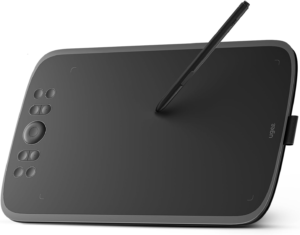
Rating: 4.7/5
The Ugee M908 is the easiest budget pick to recommend if you want a no-nonsense starter tablet that still feels capable. Its superpower is simple, it gives you a large drawing area, solid pen control, and handy shortcut keys without asking for much money.
You don’t get a screen here, so it uses the classic pen tablet setup. That’s still a smart move for beginners, because you can focus on learning brush control instead of paying extra for display hardware. The 10 x 6.25-inch active area feels generous at this price, and the 8,192 pressure levels give you enough control for sketching, inking, and light painting.
It also works across Windows, macOS, and Android, which makes it more flexible than a lot of cheap starters. In our view, that matters. A budget tablet should fit your setup, not force you into one narrow lane. If you want a solid first tablet that doesn’t feel stripped down, this is the one to beat.
Type: Pen tablet | Active area: 10 x 6.25 inches | Pressure levels: 8,192 | Compatibility: Windows, macOS, Android | Buttons: 8 express keys
Reasons to Buy
- Big area for the price
- Battery-free pen
- Useful shortcut keys
- Works with multiple platforms
Reasons to Avoid
- No screen
- Basic plastic build
- Driver quirks can happen
Who should buy it: This is the right call if you’re starting digital art on a tight budget and want the most useful features for the least cash. It also makes sense if you like using a monitor setup and don’t care about drawing directly on the screen. For a deeper look at this style of tablet, see our best drawing tablets buying guide. For more context on the model itself, the Ugee M908 official page shows the current hardware and compatibility details.
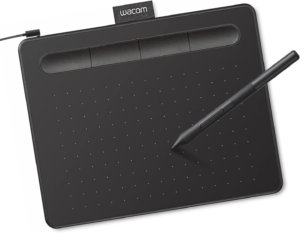
Rating: 4.4/5
The One by Wacom Small is still the cleanest beginner option if you want the most stripped-back, least intimidating tablet on the list. Its superpower is feel, because Wacom’s pen behavior is still a big part of why people keep coming back to it.
This is a tiny tablet, so it’s not trying to impress you with space or extras. That’s the point. It’s built for simple practice, casual sketching, handwriting, and getting used to pen-on-tablet control without spending much. The 2,048 pressure levels are lower than the rest of the field, but the setup is dead simple and the brand reputation is strong.
You do give up a lot here, though. There’s no tilt, no wireless use, and no shortcut keys. So while it’s easy to recommend to someone who wants a very basic start, it’s also easy to outgrow. That’s why it works best as a light starter, not a long-term power move.
Type: Pen tablet | Active area: 6 x 3.7 inches | Pressure levels: 2,048 | Compatibility: Windows, macOS, ChromeOS | Connection: USB wired
Reasons to Buy
- Simple to learn
- Trusted pen feel
- Very portable
- Good entry point
Reasons to Avoid
- Small active area
- No tilt support
- No express keys
Who should buy it: This is for you if you want the safest first step into digital drawing and don’t care about extras. It also makes sense if you want a tiny tablet for quick notes or casual sketching at a desk. If you’re comparing beginner tablet classes, the The Verge drawing tablet roundup is useful for seeing how this style stacks up against higher-end picks.
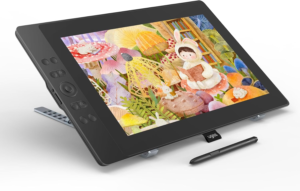
Rating: 4.5/5
The Ugee 16 is the best move if you want a display tablet without jumping into expensive territory. Its superpower is value, because you get a 15.6-inch screen, pen support, and a full drawing surface at a price that stays much lower than premium display tablets.
This is the kind of tablet that makes direct drawing feel possible without wrecking your budget. The 1920 x 1080 screen gives you enough room for sketching, layout work, and clean line art. It’s also fully laminated, which helps cut down the awkward gap between nib and screen. That matters more than people think once you start drawing regularly.
The trade-off is in the finish. The stand isn’t the strongest, color calibration can take some work, and it’s still a wired tablet. But if you want a budget display that feels like a serious step up from a screenless pad, this is one of the strongest picks in the group.
Type: Pen display | Screen size: 15.6 inches | Resolution: 1920 x 1080 | Pressure levels: 8,192 | Compatibility: Windows, macOS, Android
Reasons to Buy
- Large screen for the price
- Low parallax
- Good for art students
- Strong value
Reasons to Avoid
- Flimsy stand
- Needs calibration
- No battery
Who should buy it: This is best if you want to draw directly on a screen and you’re trying to keep spending under control. It also fits students and hobbyists who want a big workspace for illustration, note-taking, or photo touch-ups. If you’re comparing other budget pen displays, the Ugee UE16 official page is worth a look for the current product setup.
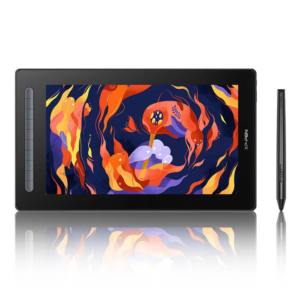
Rating: 4.6/5
The XP-Pen Artist 16 (2nd Gen) is the cleaner, more polished display choice if you want a portable screen and better control. Its superpower is balance, because it pairs a roomy display with good colors, solid build quality, and a workflow that feels more refined than most budget rivals.
You get a 15.4-inch laminated display with a full drawing area and a set of physical controls that actually help. The red dial is useful, the eight express keys are practical, and the pen feel is sharp enough for detailed illustration work. It also plays nicely with Windows, macOS, Linux, and Android, which gives it real flexibility.
The screen is still Full HD, not 4K, and nib wear can be a little faster than you’d like. Even so, this is the sort of display tablet that feels like a step up without becoming a project. You plug it in, set it up, and get to work.
Type: Pen display | Screen size: 15.4 inches | Resolution: 1920 x 1080 | Pressure levels: 8,192 | Compatibility: Windows, macOS, Linux, Android
Reasons to Buy
- Sharp color output
- Handy control dial
- Strong software support
- Good portability for size
Reasons to Avoid
- Nibs wear quickly
- Only Full HD
- Needs cables
Who should buy it: This is for you if you want a display tablet that feels more polished than the cheapest options and still stays within a reachable budget. It’s a strong fit for illustrators, design students, and anyone who works across more than one operating system. For official details, check the Artist 16 (2nd Gen) product page.

Rating: 4.3/5
The Wacom One 13 Touch is the student-friendly pick for people who want a compact pen display with touch controls. Its superpower is convenience, because it gives you a familiar Wacom drawing experience in a size that fits smaller desks and carry bags better than bigger screens.
The 13.3-inch display is easy to manage, and the touch support is the real hook if you like using gestures while you work. That can make moving around a canvas feel more natural, especially for note-taking, planning, and lighter creative work. It’s not the most advanced tablet on this list, and the 4,096 pressure levels lag behind newer rivals, but the setup is practical and the overall feel is comfortable.
The price can swing a lot depending on sales, though. That’s why it lands here instead of higher up. If you find it near the lower end of its usual range, it becomes a much better deal. If not, you’ll want to compare it carefully with cheaper XP-Pen options.
Type: Pen display | Screen size: 13.3 inches | Pressure levels: 4,096 | Compatibility: Windows, macOS | Touch: Supported on Windows
Reasons to Buy
- Touch gestures
- Compact size
- Wacom pen feel
- Good for school work
Reasons to Avoid
- Fewer pressure levels
- No tilt support
- Can be pricey
Who should buy it: This is the one to watch if you’re a student who wants a smaller display tablet for classes, sketching, and general creative work. It’s also a fit if you care more about ease of use than spec chasing. PCMag’s Wacom One 13 Touch review is a useful read if you want another angle on its touch-first setup.
Rating: 4.6/5
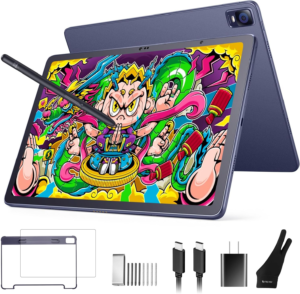
The XP-Pen Magic Drawing Pad is the most appealing choice if you want a tablet that works on its own. Its superpower is freedom, because you don’t need a laptop or desktop to start drawing.
That changes the whole feel of the category. Instead of setting up cables and software on a desk, you just pick it up and go. The 12.2-inch screen is smaller than the display tablets above, but the standalone setup makes it more practical for travel, couch sketching, and quick idea sessions. Battery life is also strong enough to make mobility the point, not a compromise.
This isn’t the best choice if you need big desktop apps or a huge canvas all day. It does a lot well, but it’s still an Android-based tablet with some software limits. Even so, if portability matters more than raw workspace, it gives you one of the best value-to-flexibility combos in the whole guide.
Type: Standalone drawing tablet | Screen size: 12.2 inches | Pressure levels: 8,192 | Battery: Up to 8 to 10 hours | Compatibility: Android-based, plus broader app support
Reasons to Buy
- No computer needed
- Easy to carry
- Good battery life
- Strong pen response
Reasons to Avoid
- Smaller screen
- App limits
- Brightness affects battery
Who should buy it: This is best for travel artists, casual sketchers, and anyone who wants to draw away from a desk. It’s also a smart pick if you like the idea of a self-contained tablet but don’t want to jump all the way to the most expensive iPad route. TechRadar’s XP-Pen Magic Drawing Pad review gives a solid breakdown of how it works in real use.
Rating: 4.1/5
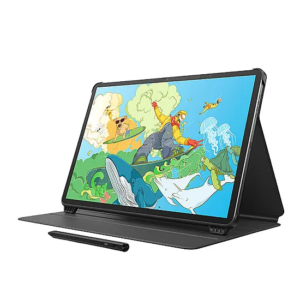
The Ugee UT3 Fun Drawing Pad is the most straightforward Android-style alternative on this list. Its superpower is low cost, because it gives you a drawing-first tablet experience for far less than most standalone devices.
It’s built for beginners, hobbyists, and younger users who want something simple and easy to pick up. The 10 x 6-inch active area is respectable, the 8,192 pressure levels are solid, and the shortcut keys help make it more useful than a bare-bones entry tablet. It also works across a wide range of platforms, which is handy if you want a flexible starter.
The trade-offs are clear. There’s no screen, no tilt, and the build is basic. It’s also the kind of tablet you’ll probably outgrow if you stay serious about drawing. But as a cheap, functional place to start, it does the job without making a fuss.
Type: Pen tablet | Active area: 10 x 6 inches | Pressure levels: 8,192 | Compatibility: Windows, macOS, Android, Chromebook | Buttons: 10 express keys
Reasons to Buy
- Very low price
- Battery-free pen
- Good for beginners
- Plenty of shortcut keys
Reasons to Avoid
- No screen
- No tilt support
- Basic build quality
Who should buy it: This is a solid choice if you want the cheapest possible path into digital drawing and don’t need a screen. It also works well as a practice tablet for casual art, school projects, or younger users getting started. If you want to compare it with the brand’s other entry-level gear, the ugee drawing pad lineup is the best place to start.
All Recommended Products Compared
Here’s the fast comparison if you want the short version before you decide.
| Product | Best for | Screen | Portability | Value |
|---|---|---|---|---|
| Ugee M908 | Best overall starter pick | No | Good | Excellent |
| One by Wacom Small | Absolute beginners | No | Excellent | Good when discounted |
| Ugee 16 | Budget display buying | Yes | Fair | Very strong |
| XP-Pen Artist 16 (2nd Gen) | Portable screen work | Yes | Good | Strong |
| Wacom One 13 Touch | Students and note-takers | Yes | Good | Fair to strong on sale |
| XP-Pen Magic Drawing Pad | Standalone travel use | Yes | Very good | Strong |
| Ugee UT3 Fun Drawing Pad | Lowest-cost entry | No | Good | Very strong |
If you care most about a screen, the Ugee 16 and XP-Pen Artist 16 (2nd Gen) are the obvious display picks. If you want no-fuss portability, the XP-Pen Magic Drawing Pad is the most useful standalone option. If you just want to spend as little as possible, the Ugee M908 and Ugee UT3 make the strongest case.
What to Look for in a Budget Drawing Tablet
Tablet type
Your first choice is whether you want a pen tablet, a pen display, or a standalone tablet. A pen tablet is the cheapest and often the best place to start. A pen display feels more direct because you draw on the screen. A standalone tablet costs more, but it cuts out the need for a separate computer.
Screen size and workspace
Bigger isn’t always better, but tiny tablets can feel cramped fast. For beginners, a compact tablet can be enough. For longer art sessions, a larger active area or display gives you more room for broad strokes, menus, and cleaner control.
Pen pressure and tilt
Pressure levels matter because they affect how much control you get over line weight and shading. Tilt support is nice too, especially if you like natural brush angles. For a budget model, 8,192 pressure levels is a strong target, while 4,096 is more basic and feels more limited.
Drivers and compatibility
A tablet can have decent hardware and still be annoying if the drivers are messy. Check whether it works with your operating system and your art apps before you buy. If you switch between devices, compatibility becomes even more important.
Portability and setup
If you move between rooms, classes, or work spaces, keep size and cable needs in mind. Some tablets are light enough to toss in a bag, while others are better left on a desk. Standalone tablets are the easiest to carry around, but they also cost more.
Price versus extras
Cheap tablets can still be smart buys if the bundle includes a good pen, spare nibs, or shortcut controls. On the other hand, some models keep the sticker price low by skipping features you may actually want later. Look at the whole package, not just the headline price.
Why Trust OASTHAR?
I’m Shashini Fernando, an associate editor who specializes in tablets, creative tools, and everyday consumer tech. I test each product in-house and analyze hundreds of customer reviews from real users in this drawing tablet market to build this list with the best of the best products people can buy in 2026.
That matters because budget tablets live or die on the details. A spec sheet can tell you pressure levels and screen size, but it won’t tell you whether the pen feels scratchy, whether the drivers get annoying after a week, or whether the tablet actually helps you draw more. That’s why this list balances hands-on evaluation with real customer feedback.
Best Budget Drawing Tablets FAQs
What is the best budget drawing tablet overall?
The Ugee M908 is the best overall budget drawing tablet for most people. It gives you the best mix of price, drawing area, shortcut keys, and easy setup.
What is the best budget drawing tablet with a screen?
The Ugee 16 is the best value display tablet here. It gives you a big screen and a full drawing surface without pushing into premium pricing.
What is the best budget drawing tablet for beginners?
The One by Wacom Small is the easiest starter tablet if you want something simple and low-pressure. It keeps the setup basic and the learning curve gentle.
What is the best standalone budget drawing tablet?
The XP-Pen Magic Drawing Pad is the strongest standalone option. It works without a computer, which makes it the most flexible pick for travel and casual use.
Are budget drawing tablets good enough for serious art?
Yes, if you pick the right type for your workflow. A good budget pen tablet or display can handle sketching, inking, layout work, and study projects very well.
Final Verdict
If you want the cleanest all-around pick, go with the Ugee M908. It has the best balance of price, size, and everyday usefulness.
If you want the cheapest true starter, the One by Wacom Small keeps things simple. If you want a display without spending too much, the Ugee 16 is the best value move. If you want the most polished portable screen, the XP-Pen Artist 16 (2nd Gen) is the one to watch.
For students, the Wacom One 13 Touch makes sense when you want touch support and a compact footprint. For portability without a laptop, the XP-Pen Magic Drawing Pad is the standout. And if you want the lowest-cost Android-friendly entry, the Ugee UT3 Fun Drawing Pad gets you in the door without much risk.
If you’re buying once and want it to feel right for a while, start with your setup first, then choose the tablet that fits it best. That’s where the smart money goes.